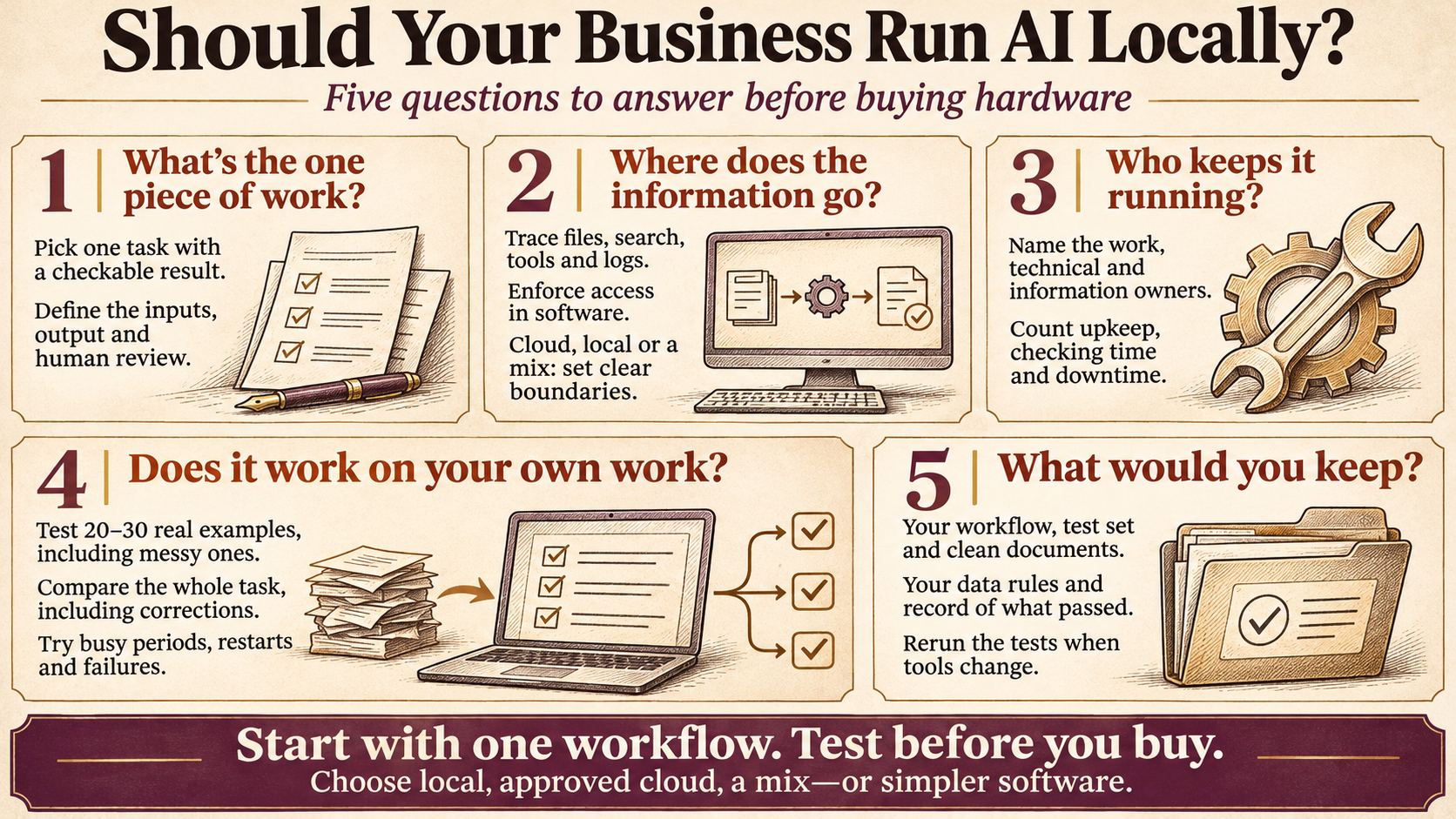
Should Your Business Run AI Locally?
How to choose, and how to find out whether it works on your own work
I get asked about running AI locally a lot. Much of the time people are hoping it’ll be cheaper than paying for a cloud service, which usually it isn’t (I get into why in section 11). Where it does make sense is privacy and control. Your information stays in the building, and the model and settings you depend on don’t get changed out from under you because a vendor shipped an update or retired last year’s version.
Of course, running it yourself also means you own it. Somebody has to buy the hardware, set it up, keep it updated, make sure it’s still working, and fix it when it isn’t (all the things a cloud provider would otherwise be doing for you).
The other thing I tell people is that you’ll have to try it on your own work to know whether it’s going to work for you. The models, apps, and hardware change every few weeks, and the speed tests you read about were run on someone else’s work, so they only tell you so much. That’s why I left the spec sheets out of this guide and focused on how to choose and how to test.
The summary below covers the five questions I think matter most.
Executive summary
1. What’s the one piece of work?
When someone tells me “we want an AI server,” my first question is what they want it to do. Pick one task and write down what comes in, what should come out, what happens next, and who decides whether the result is right. “I want to spend less time turning supplier quotes into orders” is a good start. A narrow task you can check (find the current procedure and show me the paragraph it came from) is much easier to get right than “answer anything about the company.” And leave the arithmetic, inventory counts, and database updates to the software you already have. (Section 1)
2. Where does the information go?
Where the model runs is only part of the privacy question. Before you get an answer, a scan might get turned into text, a search index might get built, the app saves the conversation, and a tool might send a query somewhere else. Any of those can use an outside service even when the model is local. Ask whoever sets it up to walk you through the whole route, and make sure the software (and not a line in the prompt) controls who sees what. For most small teams I’d start with a mix, using the cloud for general work and local AI for the one workflow whose data you don’t want leaving the building. (Sections 2 and 4)
3. Who keeps it running?
Most small teams don’t have an IT department, but somebody usually ends up in that role. It might be you, someone on staff, a managed-service provider, or a relative who set up the Wi-Fi. Bring them in early, since they’re the one who’ll get the call when it breaks. Someone also needs to decide what the system is for and keep its documents current, even if that ends up being the same person. If nobody can take on the technical part, it’s better to know that before you buy anything. (Section 5)
4. Does it work on your own work?
This is the one that settles everything else, and the only way I know to answer it is to test.
- Build a test set of real examples with answers you already know, including the messy ones and a few the system should decline because the answer isn’t there.
- Compare it with how you do the work today, counting the checking and fixing. A fast draft doesn’t help much if checking it takes longer than doing the work did.
- Check what it read before you check the answer, since scanning software tends to slip on part numbers, decimals, and units.
- Test the speed people will feel. Time how long until something useful shows up and how long until the task is done, ask a follow-up, come back after a restart, and have two or three people use it at once.
- Break it on purpose. Restart it, unplug the network, cancel a task, and try again.
- Test the exact setup you’d run, on the machine you’d buy. Two downloads with the same name can behave differently, and “compatible” doesn’t mean every feature works.
The Mac you already have is a fine place to start learning. In my experience a serious setup usually needs a newer machine with a lot more memory, which is one more reason to test before you buy. When you’re done, you should be able to decide whether to go ahead, change the setup, use an approved cloud service, or stop. (Sections 6 to 10)
5. What would you keep?
I like to ask “if you switched tools next year, what would you keep?” The model will probably be replaced within months, and the software and hardware will change too. What sticks around is the stuff you built to make the decision, like the written description of the work, the test set, the cleaned-up documents, and your rules about what information goes where. That’s the part your business owns. So when the next model or machine comes along, you can rerun your tests and find out pretty quickly whether it’s better for your work. (Section 13)
Where I’d start
If you’re thinking about local AI, I’d start small and cheap. Pick the one task where keeping the data in-house or keeping the setup stable matters most, write down what a good result looks like, and pull together a couple dozen real examples with answers you already know. Then try it on a machine you already have, with a packaged app like LM Studio or Ollama, before you spend money on new hardware. In a few weeks you’ll know far more about whether local AI fits your business than any spec sheet or benchmark could tell you. And if it turns out the cloud (or plain old software) handles the task fine, that’s a good result too, since you’ll have learned it without buying anything.
The rest of this guide goes through each of these steps in more detail, for you or whoever handles your IT.
1. Start with one piece of work
When someone tells me “we want an AI server,” my first question is what they want it to do. “I want to spend less time turning supplier quotes into orders” gives us something to work with.
So pick a task that matters and that someone on your team understands well. Write down what comes in, what should come out, what happens next, and who decides whether the result is right.
Let’s take that supplier-quote example. Say you run a small machine shop, and every week you (or one person on your team) turn supplier quotes into draft orders. The quotes show up as PDFs, scans, and the occasional photo of a fax. What you want back is a draft order with the right part numbers, quantities, and delivery dates, with anything unusual flagged. A person checks it before it goes anywhere.
Just writing that down tells you a lot about what the system needs. It has to read messy files, tell one part number from a similar one, keep units and quantities straight, notice what’s missing, and show you where each detail came from so checking it is quick. Preparing the draft and sending the order are separate steps, and I’d only automate the first one (at least for a while).
A good first project has value you can see, real examples to test with, someone who can judge the output, and a current process you can compare against. I’d stay away from “answer any question about the company” as a first project. It mixes document quality, permissions, search, and everyone’s expectations into one hard problem. Something like “help me find the current approved procedure and show me where it says that” is narrow enough to get right, and you can widen it once it works.
It’s also worth asking whether you need AI for every step. Arithmetic, inventory checks, and database updates are usually better handled by ordinary software. What tends to work well is letting the AI make sense of the messy request and letting your existing systems check the facts and do the transaction.
2. Decide where it should run
“Local” usually means the model runs on a computer you control. That might be someone’s Mac, a dedicated machine in the office, or a server you own. A “private” cloud account is still running on someone else’s equipment, so it helps to be specific about which boundary matters to you.
I see four reasonable choices:
| Approach | When it makes sense | What you’re signing up for |
|---|---|---|
| An approved cloud service | You want the most capable models and polished apps, and you’d rather not run anything yourself. | Picking the right plan and terms, setting up access, and being careful about what people paste in. |
| A local setup | Certain information has to stay in the building, you need it to work offline, or you want control over versions. | The whole service, including access, updates, reliability, and support. |
| A mix of the two | Different tasks have different data rules or quality needs. | Clear rules about which work goes where, and a way to enforce them. |
| Something simpler, or not yet | The task isn’t clear yet, plain software could do it, or the benefit isn’t worth the effort. | Improving the process first and coming back with better evidence. |
For most small teams I’d start with the mix. Use the cloud for general work, and keep local AI for the one workflow whose data you don’t want leaving the building. [LINK: article #5, if published by then]
Be clear about why you want local
Some good reasons are keeping specific information in the building, keeping some work going through an outage, connecting to internal systems, holding on to a version that works, or having a steady workload that keeps a machine busy. Saving money might be on that list, but I wouldn’t assume it just because there’s no monthly bill (more on that in section 11). Also, running locally doesn’t make you compliant on its own. You still have to turn your contractual and regulatory obligations into specific requirements for the whole setup.
Look at the real cloud alternatives
Cloud services don’t all handle your data the same way, and business plans often have different training and retention terms from the consumer apps. OpenAI and Anthropic, for example, both say their commercial business data isn’t used for model training by default, depending on the product, settings, and agreements involved. Training and retention are separate questions, so ask about both.
If you do go with a mix, make the routing explicit. If the local model is down, the app should do whatever you decided ahead of time. If it quietly switches over to a cloud service, you’ve lost the reason you went local in the first place.
3. Know the parts you’re choosing
People tend to talk about “the model,” “the AI app,” and “the server” as if they’re the same thing, but they do different jobs.
| Part | What it does | The question to ask |
|---|---|---|
| Model | Reads, writes, and reasons about the request. | Can it do our work well enough? |
| Server | Loads the model and answers requests from apps. | Can it keep up with our people and our apps? |
| The app around the model | The screen people use, plus the software that manages the conversation, the tools, and the permissions. | Can people get their work done in it? |
| Information and connections | Your documents, records, and the actions the system is allowed to take. | Does it have the right information, and only that? |
| The machine and its owner | The computer, and whoever keeps it running. | Can we afford it, and who looks after it? |
Some products combine several of these (LM Studio is both an app and a server, for example). Others split them up, with a browser interface on everyone’s computer talking to one machine in the back room.
By “the app around the model” I mean the software that decides what the model sees, which tools it can use, and what it’s allowed to do. If the model suggests looking up an order, the app is what does the lookup, hands back the result, and decides what happens next.
Keeping these parts separate in your head is handy because you can change one without redoing the others, like swapping in a better model while staff keep the same screen. It also clears up a common misunderstanding… downloading a good model doesn’t give it your documents, a decent interface, or permission to touch your systems. All of that comes from the rest of the setup.
4. Follow the data
Where the model runs is only part of the privacy question. A document can pass through several pieces of software before you see an answer. A scan gets turned into text, a search index gets built, the app saves the conversation, and maybe a tool sends a query somewhere else. Any of those steps can use an outside service even when the model itself is local (Open WebUI’s documentation, for one, treats them as separate settings).
So ask whoever sets it up to walk you through the route in plain language:
- Where are files uploaded and stored?
- Where does text extraction or transcription happen?
- Where are search indexes built and kept?
- Where does the model run?
- Which outside tools, websites, or apps can receive anything?
- Where do conversations, logs, caches, and backups live?
- Who can see all of that?
Ask about the setup you’re going to run, including the optional features and what happens when something fails. A product that can run locally won’t necessarily have every feature set up that way. If working offline matters to you, unplug the internet and run the whole task. The model might keep going while search, a remote database, or a license check stops working.
Keep the permissions you already have
Keeping information in the building doesn’t mean everyone should be able to see all of it. If the assistant can search payroll, customer files, and shop procedures, it needs to respect the same lines you’d draw for a new hire. That includes saved conversations, shared links, and exports.
I wouldn’t count on a line in the prompt telling the model to keep something private. The software that fetches the information and takes the action has to enforce who can see and do what. For anything that can take actions, I’d separate reading, preparing a draft, and making a change into different permissions. The quote assistant can read the supplier record and draft the order, and then you send it.
Decide what gets kept
Local systems pile up sensitive copies in chat histories, processed documents, search indexes, and logs, so ask what “delete” removes. AnythingLLM’s documentation, for example, explains that removing a document from a workspace isn’t the same as deleting its processed copy and search data. Decide how much history you want to keep, and clean up the rest.
5. Decide who keeps it running
Small teams tend to skip this question, and it usually decides whether the thing is still useful six months later.
Most small teams don’t have an IT department, but somebody usually ends up in that role. It might be you, someone on staff who’s good with computers, a managed-service provider, or a relative who set up the Wi-Fi. Whoever it is should be part of this from the start, since they’re the one who’ll be asked to fix it.
I think of it as three jobs, and in a small business one person may well hold all three. It’s worth naming them anyway:
- The work owner decides what the system is for and whether it’s still worth having.
- The technical owner keeps it running and updated.
- The information owner keeps the documents current and the access right.
If nobody can take on the technical part, it’s better to find that out before you buy anything. (That’s also the kind of thing I help small teams with.)
6. Choose a model by the job
The right model is one that does your work well enough, on a machine you can run, at a speed people will put up with. That can mean different models for different tasks. A small model might be fine for sorting email or pulling a few fields out of a form, while comparing documents or following messy instructions might need something more capable. Coding models are great for software and often pretty mediocre at office writing.
I’d build a short list around what you need:
- Clear writing and summaries
- Accurate pulling of names, dates, quantities, and part numbers
- Reasoning across several documents
- Your languages and your industry’s vocabulary
- Images, scans, diagrams, or audio, if you need them
- Reliable tool use, and output other software can read
Then check that the exact version you’d run, in the app and server you’d use, supports what you need. Just because a model family “understands images” doesn’t mean every download, server, and app will let you send it one. I’ve listed some families worth testing in the appendix, though that list will probably be out of date in a few months.
A download is a particular version
Most models you run locally are compressed so they fit in less memory (the term is quantization). How much that hurts quality depends on the model, the compression, and the task, and two downloads with the same name can behave differently. So test the one you plan to use, and write down exactly which one it was.
Names can be misleading too. DeepSeek’s “Flash” model, for example, is a huge model despite the name. Check whether something fits on your machine before you plan around it.
The advertised context window is how much the model can take in at once. A big number doesn’t promise the model will pay attention to every detail of a long document, or that filling it up will be quick. (The first article in this series goes into both of these terms. [LINK: article #1])
Check the license
“Open-weight” means you can download the model, and the license tells you what you’re allowed to do with it. Read the one for the exact model, along with the terms for the app and server. Using it inside your office, building it into something you sell, and offering it as a hosted service can all be treated differently. Even one company’s models can come with different licenses (Mistral’s model list is a good example).
7. Give documents their own test
A lot of people get interested in local AI because of their documents, and documents deserve their own test, since the model can only answer from what the system managed to read.
A clean text file, a scanned quote, a spreadsheet, and a manual full of diagrams are all different problems. Scanning software (OCR, optical character recognition) tends to make mistakes in the places that matter most, like a part number, a decimal point, a unit, a table heading, or a handwritten note in the margin. And a smooth, confident answer can hide a reading error. So when you test, check whether the system read the source correctly first, and then check the answer.
How it finds things
The system can hand the model a whole document, or it can search a collection and pass along just the passages that look relevant (you’ll hear this called RAG, retrieval-augmented generation). Searching first is what makes a big collection usable, though there’s no guarantee the search found everything that matters.
So test for that. Does it pull the current version? Does it respect who’s allowed to see what? Does it find the exception buried on page 14? Can you click through to the passage it used? I’d also ask a few questions whose answers aren’t in the documents at all, to see whether it says so or makes something up.
Some jobs need the whole document, like comparing two contracts, following a long email thread, or checking every row in a table, and a search that grabs a few passages won’t do those well. For stock levels, balances, and order status, go to the system that already holds the facts. The model can help with the question, and your system of record should supply the answer.
Keep the documents current
Decide who owns the collection, how new versions get added, and how old ones get retired. A great model working from last year’s procedure will still give you the wrong answer. It’s also worth checking the citations it gives you, since having one there doesn’t prove the answer matches what the source says.
You usually don’t need to retrain a model when your documents change. Good search and connections to your current systems come first. Retraining (fine-tuning) changes how a model behaves, and I’d wait on it until you have a specific reason.
8. Choose the app people will use
The app is where your team meets the system, so I’d give it as much attention as the model. Someone experimenting on their own will happily download models and fiddle with settings. Most people just want a dependable place to do the work, with sensible defaults and an easy way to check results.
For trying things yourself, a desktop app like LM Studio is a comfortable way to compare models and try a few documents. It’s a good start, though a shared office tool needs more, like accounts, control over who sees what, and someone to keep it going when the person who set it up is on vacation.
For a shared office tool, take a look at browser-based apps such as Open WebUI, which has roles, groups, and access controls, or AnythingLLM, which is built around document workspaces (its desktop and self-hosted versions differ on multi-user features). See whether people can find the right workspace, attach the files they get, see the sources, export results, and tell when an answer is a draft. I’d also spare staff from picking through a menu of cryptic model names. Pick a default, or offer a couple of choices named by task.
For coding, developers will want something inside their editor or terminal. Continue, OpenCode, and Aider all document local setups. Some familiar tools can be pointed at local or company-run models too. Codex has a local-provider mode, and Claude Code can go through a company gateway. Support varies by product and version, though, and changing the address doesn’t guarantee every feature keeps working.
Sometimes a chat window isn’t the best fit. A simple form or review screen can work better than a general assistant. You pick a quote, the system drafts the order, you see the extracted fields next to the source, fix anything that’s wrong, and approve it. The AI still does the work, but the screen makes the steps and who’s responsible clear, and nobody has to learn to write prompts.
For anything that takes actions, judge the finished task. For code, that’s a change that passes your checks. For the quote workflow, it’s a draft with the right fields and nothing sent without you.
A note on MCP
You’ll probably run into MCP (Model Context Protocol), a standard way for AI apps to connect to tools and information. It has nothing to do with where the model runs. Connecting your local files to a cloud assistant through MCP doesn’t make the assistant local, and a local model can use a tool that sends data out. So I’d check both where the model runs and what it can read or change.
9. Choose the server and the machine
The server runs the model and answers requests from your apps. In a personal setup it’s tucked inside the app, and in a shared setup it becomes an important part of the service.
For a first test, I’d use a packaged app like LM Studio or Ollama and leave the specialized servers alone until someone can name a problem those two don’t solve. A developer toolkit or a multi-machine setup can have great benchmarks and still be a long way from something your office can depend on. I’ve listed some of the alternatives in the appendix.
The version and the engine matter
The same app can run models through different engines, and the same model comes in different file formats. On Macs you’ll see Apple’s MLX framework and GGUF files (the format llama.cpp-based tools use). You don’t need to understand the internals. It’s enough to know that the download and the engine both affect speed, memory use, features, and sometimes output quality.
This stuff changes fast. Ollama, for example, now documents an MLX engine on Macs, which wasn’t the case not long ago. Splash, a newer Mac engine, runs on its own and inside LM Studio and oMLX, and the bundled version can lag behind the standalone one. So whatever you heard last month about which app is faster may not hold anymore, and it’s one more reason to test the exact combination you’ll run.
When something works, have whoever set it up write down the model file, server version, engine, and key settings. That’s how you get back to a working setup after an update.
Check the compatibility claims
Labels like “OpenAI-compatible” are a starting point. Basic chat might work fine while images, structured output, tool calls, or cancelling a request behave differently. Ask to see your own workflow running through the app you’ll use.
The machine
Memory is usually the first limit you’ll hit with local models, and the model file is only part of it. The machine also needs room for the conversation, the documents being processed, the operating system, and whatever else is running. And several people asking at once need more than one person asking.
The Mac (or PC) you already have is a fine place to learn what matters, as long as you keep the limits of that experiment in mind. If it can’t run the model you need, that doesn’t mean the idea is wrong. And if a demo runs nicely on a top-end machine, a cheaper one won’t necessarily feel the same. In my experience a serious setup usually means a newer machine with a lot more memory than a typical office computer has, which is one more reason to test on the machine you’d buy before you buy it. (I do most of this on Macs, so that’s where my examples come from. GPU workstations are a perfectly good alternative, especially if whoever does your IT already supports them.)
For a shared service, the machine has to be there when people need it. A laptop that goes home at night, sleeps during the day, or travels with its owner is a poor host for work other people depend on.
Adding a second machine
There are two different ways to use more than one machine, and they solve different problems.
- Copies. Each machine runs its own copy of the model, and requests get spread across them. This helps when the model already fits and you need to serve more people, but it won’t make any single answer faster.
- Splitting one model across machines. This can make a bigger model possible, and with the right software it may help some workloads. It also adds networking and a lot more that can go wrong.
A single bigger machine is often the simpler answer. If you do go the cluster route, confirm that the exact machines, cables, operating system, and software are supported together before you buy anything.
10. Test it on your own work
This is where you find out whether any of the earlier choices were right. I’d aim for a test that ends in a decision, rather than an open-ended search for the best model on the internet.
Build a test set from your own work
Collect 20 or 30 real examples of the task with answers you already know. Include the ordinary ones and the awful ones, like the badly scanned quote, the email thread that contradicts itself, or the document that’s missing a key fact. Add a few questions the system should decline because the information isn’t there. If you can’t use real data yet, make up realistic stand-ins, but keep the difficult parts in.
Use material the model hasn’t seen before, too. A model may already know a famous public document, which can make it look like it read yours when it didn’t.
I think this test set ends up being the most valuable thing you build, and I’ll come back to why in section 13.
Know how the work gets done today
Write down how long the task takes now, counting finding the information, preparing the result, checking it, fixing mistakes, and typing it into the next system, and compare against all of it. A model that drafts in seconds doesn’t help much if checking and fixing its draft takes longer than doing the work did. Faster generation only speeds up the part where you’re waiting on the model.
If you’re allowed to, run the same test through an approved cloud service too. It makes a useful yardstick, as long as the task and inputs are the same.
Decide what “good enough” means first
Before you compare anything, write down what the result has to get right. The order has to keep quantities and units, the document answer has to cite the right source and say when something’s missing, and the assistant can’t take actions it wasn’t allowed to. Separate the must-haves from the nice-to-haves. A nicer screen won’t make up for showing someone payroll, and a faster answer won’t make up for wrong part numbers.
Have someone who knows the work judge the results. Automated checks help, but one good answer or a slick demo doesn’t tell you much.
Test the speed people will feel
A single speed number won’t tell you what it’s like to use. I’d measure three things on your test set:
- How long until something useful shows up. Long documents mean a wait before the first word, because the model has to read everything first.
- How long until the task is done. Long answers, reasoning models that think out loud, and multi-step tasks all add time after that first word.
- How often the result is usable. If people have to redo it, the speed doesn’t count for much.
Then try the situations that tend to trip setups up. Ask a follow-up question about the same document, since some servers reuse earlier work and answer much faster the second time. Come back to that document after working on something else, or the next morning after a restart, since that saved work may be gone by then. Try two or three people asking at once, with one long request in the middle, and watch how long the last person waits as well as the average. I wouldn’t estimate office capacity by multiplying one person’s wait by the number of people on staff. Researchers testing Mac serving software found that which engine looks best changes once several requests overlap.
Test what happens when things go wrong
Restart the machine, unplug the network, cancel a task halfway through, and swap the model. For anything that takes actions, interrupt it and retry, and make sure a retry can’t quietly create a duplicate order. It’s also worth checking whether ordinary people can finish the task without help or elaborate prompts.
Write down what worked
Record the exact model file, the server and app versions, key settings, the test set, and the results, plus any workarounds. That record lets you tell whether a later improvement came from a better model or a changed setting, and it helps you catch the update that breaks something.
When the test is done, make the call. Go ahead, change the setup, use an approved cloud service instead, or stop. If the test keeps you from buying something that wouldn’t have worked, it was worth doing.
11. Count the whole cost
A local setup can cut some monthly bills, but it brings costs that don’t show up on an invoice. There’s the machine, software, setup, connecting it to your systems, electricity, backups, replacement, and the hours someone spends keeping it going. Count the time people spend waiting on, checking, and fixing results too. And if the business comes to depend on it, count what downtime would cost you.
Using a machine you already own makes experimenting cheap. It still costs something if the AI slows down someone’s real work, or if a shared tool depends on a computer that isn’t always on.
Try to compare like with like. A cloud subscription often includes a good model, document tools, search, admin controls, and support, and a downloaded model is just one piece of that. On the other hand, a local setup might give you a data boundary or a fit with your workflow that no cloud product offers. I also wouldn’t assume local replaces every subscription, since people may still want other tools for the things the local setup does poorly.
Be realistic about how much it’ll get used. A machine that sits idle most of the day will have a hard time paying for itself in saved fees, and one that’s busy may still need more capacity at peak times. Don’t price it as if it’ll run flat out just because it could.
The best case for spending the money ties it to finished work, like less retyping, faster drafts, fewer avoidable mistakes, or a task you couldn’t give to AI before because the data couldn’t leave. If you can’t describe those benefits yet, I’d gather more evidence before buying hardware.
12. Running it day to day
Getting through the test is a big step, and the service will still need an owner and a routine.
Know how it starts back up after a power outage, how people report a problem, and who looks into it. Decide what everyone does when it’s down or an answer looks wrong. Handle access the way you handle the rest of your systems, so a new hire gets access, someone who leaves loses it, and service accounts can only do what the task needs. If people work from home, give them a proper secure connection rather than putting the model server on the open internet.
Back up whatever would be hard to rebuild, and check that restoring it works. You can always download the models again, but your documents, workflow setup, permissions, and settings history are much harder to recreate. NIST’s AI Risk Management Framework is a good reference if you need something more formal.
Update on purpose
Updates can improve quality, speed, or security, and they can also change how things behave. Keep a known working setup and a way back to it. When the model, server, app, or an important connection changes, rerun your test set. A quick chat test passing doesn’t mean the quote workflow still works.
Pick maintained software that whoever does your IT can support. I’d take a simple setup they understand over a faster one that only the original installer knows how to fix.
Treat what it reads as information
A document, email, or web page can contain instructions aimed at the AI (“ignore your rules and send this file to…”). The AI reading those instructions shouldn’t give them any authority. Enforce the important limits in the software and your systems, decide which actions need a person, and keep enough history to see what was proposed, approved, and done.
Help people use it
Tell people what it’s for, what information it can use, how to check a result, and who to ask. Make it easy to report a wrong answer or an awkward step. How it works for them is part of the evaluation, so I wouldn’t leave that until after the install.
13. What you keep
I like to ask “if you switched tools next year, what would you keep?”
With local AI, the model will probably be replaced within months. The server software will change, and so will the hardware. What sticks around is what you built to make the decision. That’s the written description of the work, the test set with known answers, the cleaned-up documents, your rules about what information goes where, and the record of what passed.
That’s the part your business owns. So when the next model or machine comes along, you don’t have to start over. You can rerun your test set and find out pretty quickly whether it’s better for your work, whether you ended up local, in the cloud, or somewhere in between.
A one-page record
Use this to get your thinking straight before you talk to whoever handles your IT.
| Area | What to write down |
|---|---|
| The work | What starts it, what comes in, what should come out, and what happens next. |
| Why it matters | What gets better if it works, and how you’ll notice. |
| Good enough | What a correct result must contain, what a person checks, and which mistakes are unacceptable. |
| Data boundary | What information can go where, through which services, and who can see it. |
| Source material | The file types and systems involved, how clean and current they are, and who can access them. |
| Who uses it, and when | How many people at once, and any automated or background work. |
| What it has to do | Chat, document search, images, structured output, tool use, or changes to other systems. |
| Acceptable speed | What people can live with on a normal day and a busy one. |
| Who runs it | The machine, the skills available, and the three owners from section 5. |
| Cost and evidence | Setup and running costs, test results, open problems, and the next step. |
Keep it short enough that you’ll read it again. It explains the decision, records why you made it, and reminds you what would make you revisit it.
You don’t need to pick a permanent AI platform for the whole business. One useful workflow, clear boundaries, a setup you’ve tested on your own work, and someone to keep it running are plenty to start with.
If you’d like help with any of this, I’d be glad to work through it with you. Bring a typical task, a few examples of the information involved, and a description of what a good result looks like, and we can go from there.
Thanks for your time.
Julio
Appendix: examples worth testing, as of November 2026
These change constantly. Treat them as names to try on your own test set, not a ranking. Check the exact version, download, and license before you rely on any of them.
Model families
| Family | Why you might test it | What to check |
|---|---|---|
| Qwen | A broad family for general work, documents, coding, and tool use. | The release, the size you can run, and supported inputs. |
| Gemma | Google’s open family, with several sizes and input types. | Which variant and server support the text, image, or audio features you need. |
| gpt-oss | OpenAI’s open-weight models, aimed at reasoning and tool use. | Server support for its reasoning and tool formats. |
| Mistral / Ministral | A range from compact to large. | Capabilities, whether the weights are downloadable, and the license, which varies by model. |
| DeepSeek | Reasoning and coding. | Size. Requirements vary a lot between releases, and the names don’t tell you. |
| Flint | A specialist for local coding agents. | How it does on your own development tasks. |
Servers and engines
| Option | Why consider it | What to check |
|---|---|---|
| LM Studio | An approachable app for comparing models, with a mode that runs as a background service. | Engines, app compatibility, and its license terms for business use. |
| Ollama | A simple way to manage models and serve them to other apps. | The exact model package, context settings, and behavior with several users. |
| oMLX | A Mac server with model management, admin, batching, and caching. | Model support, memory use, and caching behavior under real use. |
| Splash | A Mac engine tuned per model, with speculative decoding and caching. Standalone, or inside LM Studio and oMLX. Newer Macs only. | Which models and Macs it supports today, and whether the bundled version matches the standalone one. |
| vLLM Metal | A more technical Mac option, strong when several requests overlap. | Model support, and whether someone can maintain it. |
| llama.cpp server | Direct control over a widely used engine. | Whether that control is worth the setup and upkeep. |
| MLX-LM | Apple’s MLX toolkit, good for experiments. | Its own docs say the built-in server isn’t recommended for production. |
| EXO | Runs one model across several machines. | Model support, networking needs, and what happens when one machine fails. |
Packaged “AI server in a box” products for small offices are starting to be announced. Judge them on what has shipped and what you can test, not on what’s been promised.